How Long Does Starlink Take to Boot? (Startup Time & Stuck Fixes)
On this page
When powering on from a completely disconnected state (cold boot), a Starlink terminal typically takes 3 to 5 minutes to establish an active internet connection. However, full constellation ephemeris tracking, obstruction mapping, and complete speed stabilization require 10 to 15 minutes. Performing a warm soft reboot through the Starlink Mobile App is much faster, restoring connectivity in just 1 to 2 minutes because the phased array retains satellite almanac and GPS timing cache in memory.
Whether you are powering up a Gen 3 dish after a thunderstorm, running an off-grid 12V DC RV system, or troubleshooting a dish that remains stuck in an endless 'Searching' loop, this guide breaks down the 5-phase startup sequence, hardware timing differences, and proven recovery fixes. For broader diagnostics, explore our complete troubleshooting and setup guides hub.
The 5-Phase Starlink Boot Sequence
When you plug in your Starlink power supply, the hardware transitions through five distinct diagnostic states visible in the Starlink App:
Phase 1: Hardware Power-On & POST (0 to 60 Seconds)
The router boots its operating system, broadcasts the local Wi-Fi beacon, and executes power-on self-tests (POST) to verify 57V Power-over-Ethernet (PoE) delivery across all four cable pairs to the phased-array antenna.
Phase 2: Motor Unstow & Calibration (1 to 3 Minutes)
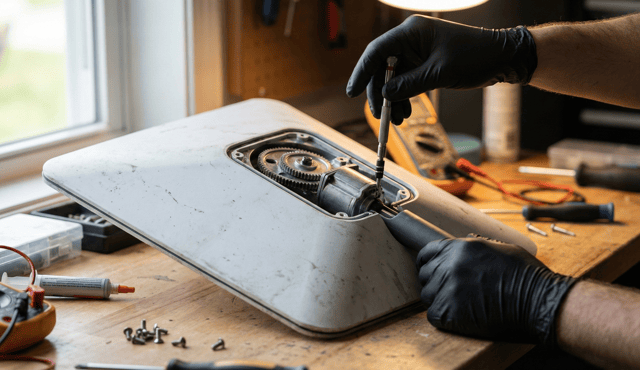
On motorized Gen 2 Actuated kits, internal stepper motors level the dish to a horizontal plane, then tilt and swivel towards the primary satellite orbital plane. Non-actuated models (Gen 3 Standard and Mini) skip mechanical leveling and proceed straight to electronic beam scanning.
Phase 3: GPS Acquisition & Ephemeris Loading (2 to 5 Minutes)
The dish locks onto multi-constellation GPS signals to establish nanosecond timing and reads orbital ephemeris tables mapping the flight path of passing low-Earth orbit satellites (App status: 'Searching').
Phase 4: Phased-Array RF Beam Handshake (3 to 7 Minutes)
The electronic beamformer focuses a steerable microwave beam at an overhead satellite, completing the initial radio handshake (App status: 'Online').
Phase 5: Gateway Routing & Speed Stabilization (5 to 15 Minutes)
The terminal negotiates a Carrier-Grade NAT (CGNAT) IPv4 lease and IPv6 prefix from the ground teleport gateway. Throughput accelerates as the terminal refines beam handoffs across adjacent satellites.
Starlink Boot Times Compared by Hardware Generation
Startup speed varies significantly depending on your hardware revision. As detailed in official Starlink hardware specifications, fixed kickstand models boot faster because they eliminate mechanical motor calibration cycles.
| Hardware Model | Cold Boot Time | Warm Reboot Time | Alignment Method | Full Stabilization |
|---|---|---|---|---|
| Standard Gen 3 (UTR-231) | 2 to 4 minutes | 1 to 2 minutes | Electronic (Fixed Kickstand) | 10 minutes |
| Starlink Mini | 2 to 3 minutes | 1 minute | Electronic (Integrated) | 8 to 10 minutes |
| Gen 2 Actuated Standard | 3 to 7 minutes | 2 minutes | Motorized Actuators | 15 minutes |
| Flat High Performance | 2 to 4 minutes | 1 to 2 minutes | Electronic (Fixed Mount) | 10 minutes |
Why Starlink Gets Stuck on 'Searching' or 'Booting'
If your Starlink terminal remains stuck on 'Booting' or 'Searching' for more than 15 minutes, one of four physical or electrical conditions is blocking the handshake:
1. Severe Physical Obstructions
If tall trees, chimneys, or roof overhangs block more than 5% of the sky, the dish cannot maintain continuous tracking long enough to complete initial key exchanges. Review the official Starlink Obstructions guide to verify field of view.
2. PoE Voltage Drop & Damaged Pins
Bent pins or moisture corrosion inside SPX or RJ45 connectors cause voltage drop under RF transmit loads, causing the antenna computer to crash and enter a reboot loop. See our Starlink cable repair and connector troubleshooting guide.
3. Off-Grid 12V DC Voltage Sag
When running on battery power in vans or RVs, cold startup transmit surges draw peak current. If 12V wiring is undersized, voltage dips below 11V trigger power supply brownouts and continuous restarts.
4. Active Sleep Schedule Misconfigurations
Check App > Settings > Router > Sleep Schedule. If an active schedule is running, the dish shuts off beam tracking until the timer concludes.
Automatic Firmware Updates and Overnight Reboots
If you wake up in the morning and discover your Starlink rebooting or showing a recent offline timestamp, your system likely installed an over-the-air (OTA) software update. As noted in Starlink firmware documentation, automated updates deploy between 2:00 AM and 4:00 AM local time. The installation cycle requires 5 to 10 minutes, followed by an automatic reboot and satellite re-acquisition.
How to Recover a Stuck Starlink Terminal
If your dish remains unresponsive after 20 minutes, follow these sequential recovery steps:
1. Soft Reboot via App: Open Starlink App > Settings > Starlink > Reboot Starlink. This resets NVRAM routing cache without wiping your Wi-Fi name or password.
2. Inspect App Debug Data: Navigate to Settings > Advanced > Debug Data. Check if 'Reachable' is green and whether 'Cable Ping Drop Rate' is zero. If dropped packets are high, re-seat cable connectors.
3. Power Cycle Hardware: Unplug the AC power cord for 60 seconds, then reconnect. This allows power supply capacitors to discharge completely.
4. Perform a Hardware Factory Reset: On Gen 2 routers, power cycle the AC plug 6 consecutive times. On Gen 3 routers, press the rear pinhole reset button. Once reset, configure fresh credentials via our Starlink router settings and Wi-Fi setup guide. If slow speeds persist after connecting, review our Starlink slow speed troubleshooting guide.
Frequently Asked Questions
How long does Starlink take to connect after a power outage?
After power is restored following an outage, Starlink typically establishes an active satellite link within 3 to 5 minutes. Full speed and low-latency performance stabilize within 10 minutes as the dish updates its satellite tracking matrix.
Why does my Starlink say 'Searching' for hours?
A dish searching for more than 15 to 20 minutes is typically caused by physical tree obstructions, a loose or damaged cable connector, or operating in an unsupported/waitlisted geographic cell. Check the 3D obstruction map in the app and reseat all physical cable connections.
Does cold weather or snow slow down Starlink boot time?
Yes. If the dish face is covered in heavy snow or ice, startup time can be delayed by 10 to 30 minutes while the built-in heating elements melt snow accumulation before the phased array can acquire an unobstructed signal lock.
Can I speed up the Starlink boot process?
You can minimize boot time by ensuring a completely unobstructed 100-degree view of the sky, keeping the dish continuously powered rather than daily power cycling, and using a soft reboot from the app rather than pulling the power plug.