Starlink App for Windows: How to Manage Your Dish from a PC (2026)
On this page
If you are searching for an official Starlink desktop application for Windows 10 or Windows 11, here is the direct truth: SpaceX does not make a native Windows app (.exe or Microsoft Store download). As detailed across official Starlink Support documentation, Starlink is designed as an app-first mobile system prioritizing iOS and Android. However, you do not need special software to connect your PC to Starlink internet, and you have four proven methods to monitor and manage your dish directly from your computer desk.
Whether you want to check live satellite latency in a web browser, manage billing from the cloud portal, run the full mobile app through lightweight Android emulation, or stream real-time telemetry via open-source tools, this guide breaks down every desktop management option available as of August 2026. For broader hardware and networking walk-throughs, explore our master Starlink installation and setup guides hub.
Method 1: The Local Browser Diagnostic Dashboard (192.168.100.1)
Every Starlink dish (Dishy) contains an internal web server that you can access from any desktop browser on your local network. Simply open Microsoft Edge, Google Chrome, or Firefox and navigate to http://192.168.100.1 (or http://dishy.starlink.com).
This local dashboard gives you a clean, read-only control center displaying real-time metrics:
• Live Connection Status & Uptime: Monitors ping latency, current download/upload throughput, and satellite tracking health.
• 3D Obstruction Map: Displays where tree branches or structures block your antenna's field of view.
• Soft Reboot & Stow Controls: Allows you to remotely trigger a dish reboot or stow motorized antennas without getting out of your chair.
Method 2: Official Web Account & Billing Portal (starlink.com)
For commercial and account administration tasks, the official Starlink Account Portal is accessible from any Windows browser without needing your phone.
From your PC web browser, you can perform full account lifecycle management:
• Subscription & Plan Management: Upgrade to Standard Residential, activate Mobile/Roam data, or pause regional service.
• Billing & Payment Methods: Download tax invoices, update credit cards, and review monthly statements.
• Customer Support Tickets: Open support tickets and upload attachments directly from your desktop file manager.
• Progressive Web App (PWA) Shortcut: In Microsoft Edge or Google Chrome, click Settings > Apps > 'Install this site as an app' to turn the Starlink portal into a clean, borderless desktop window on your Windows taskbar per Microsoft Web App guidelines.
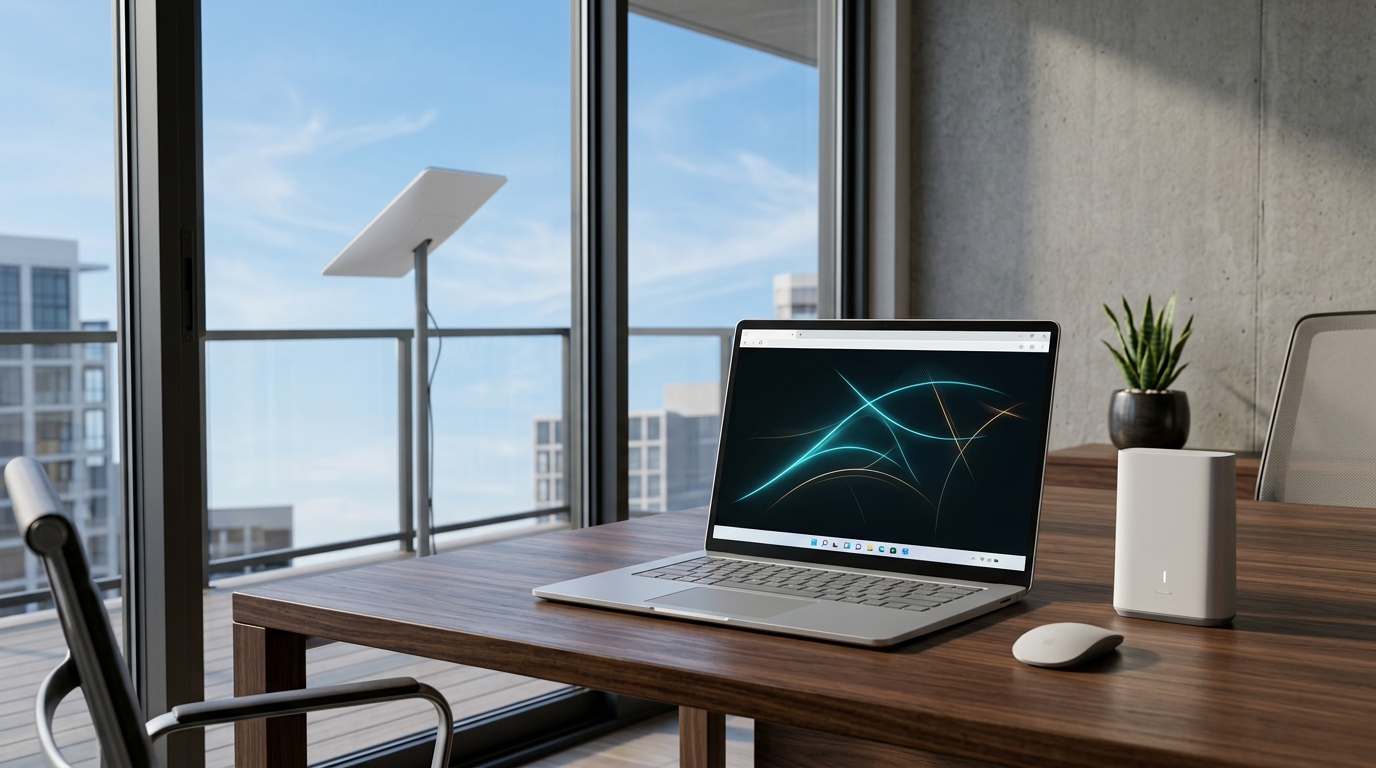
Desktop Browser vs Mobile App Feature Comparison
To understand exactly what you can manage from a Windows PC versus what still requires the mobile app, review this side-by-side feature matrix:
| Management Feature | Local Browser (192.168.100.1) | Web Portal (starlink.com) | Official Mobile App |
|---|---|---|---|
| Real-time Ping & Obstruction Map | Yes (Local Read-Only) | No | Yes (Interactive 3D) |
| Reboot & Stow Antenna | Yes | No | Yes |
| Wi-Fi Name / Password Changes | No | No | Yes |
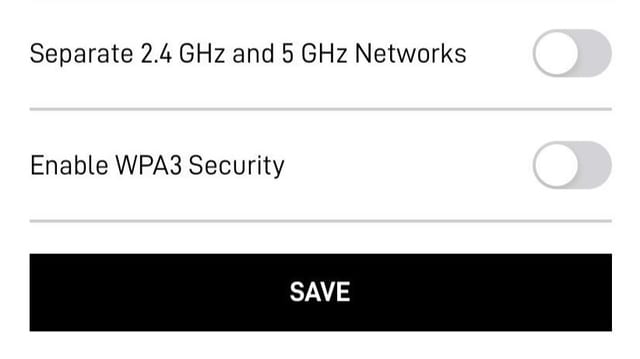
| Split 2.4 / 5 GHz Wi-Fi Bands | No | No | Yes |
| Billing, Plans & Support Tickets | No | Yes | Yes |
| Phone Camera AR Obstruction Scan | No | No | Yes (Requires Camera Sensors) |
Method 3: Running the Full Android App via Emulation on Windows
If you need 100% mobile feature parity on your PC (such as splitting Wi-Fi channels or adjusting router sleep timers), you can run the official Starlink Android APK inside a lightweight Android emulator on Windows 10 or 11.
Step-by-Step Emulation Setup with BlueStacks 5
1. Install Emulator: Download and install BlueStacks 5 (or LDPlayer 9) on your Windows PC.
2. Enable Bridged Networking: In the emulator settings, configure network bridging so the virtual Android device resides on the same local subnet as your Starlink router.
3. Download Official Starlink App: Open the Google Play Store inside the emulator, log in, and install the official Starlink app.
4. Manage All Settings: Log in with your Starlink account credentials to access advanced Wi-Fi settings, custom DNS, and real-time device management directly from your Windows monitor.
Method 4: Power-User Desktop Monitoring via Open-Source gRPC Tools
For network administrators and power users who want continuous desktop monitoring without keeping browser tabs open, the open-source starlink-grpc-tools project on GitHub (created by sparky8512) is the premier solution.
Every Starlink dish exposes a local gRPC application programming interface on TCP port 9200. By running a simple Python script on your Windows PC, you can stream real-time metrics (including signal-to-noise ratio, azimuth, elevation, satellite handoffs, and packet drop counts) directly into desktop command prompts or automated Grafana dashboards.
Troubleshooting Windows Connectivity & Speed on Starlink
If your Windows PC experiences sluggish loading times or drops connection while other household devices work fine, check these local operating system settings:
1. Force 5 GHz Band Preference: Open Device Manager > Network Adapters > Right-click your Wi-Fi card > Properties > Advanced > 'Preferred Band' and set to 5 GHz. This prevents Windows from defaulting to a crowded 2.4 GHz channel. If speeds remain slow, consult our Starlink slow speed troubleshooting guide.
2. Disable VPN Interferences: Third-party desktop VPN clients route local traffic through remote tunnels, blocking access to http://192.168.100.1. Enable 'Split Tunneling' or temporarily disconnect your VPN to load local dish diagnostics.
3. Verify Boot & Connection State: If your PC indicates 'No Internet', verify whether your dish is stuck in an alignment cycle by checking our Starlink boot sequence and startup guide.
Frequently Asked Questions
Can I download a Starlink app from the Microsoft Store?
No. There is no official Starlink app in the Microsoft Store. You can manage your service on Windows by logging into starlink.com in your web browser, navigating to 192.168.100.1 on your local network, or installing the web portal as a Progressive Web App (PWA).
Do I need any software installed on Windows to use Starlink internet?
No. Starlink works like any standard broadband connection. Your Windows 10 or 11 PC will connect automatically via Wi-Fi or Ethernet without requiring any drivers or background programs.
Why won't 192.168.100.1 open in my browser?
If 192.168.100.1 fails to load, ensure your PC is connected to the Starlink network (not a mobile hotspot), disconnect any active desktop VPNs, and confirm that your router is not in Bypass Mode without a static route configured on your WAN interface.
Can I change my Starlink Wi-Fi password from a Windows computer?
Currently, Starlink requires the official mobile app (iOS or Android) to change Wi-Fi names and passwords. If you only have a PC, you can run the Android version of the app inside an emulator like BlueStacks to change your Wi-Fi credentials.