Starlink Firmware Updates: 2026 Version Log, Auto-Update Schedule & Release Notes Tracker
On this page
Unlike traditional home modems that require manual firmware flashes, SpaceX operates Starlink as an agile, constantly evolving satellite mesh network. Your dish and Wi-Fi router receive over-the-air (OTA) software updates automatically every 1 to 2 weeks. These updates fine-tune phased-array beam tracking, improve rain fade performance, and introduce new network features without requiring user intervention.
Because Starlink does not release official public changelogs for each build, keeping track of what changed can feel cryptic. In this comprehensive guide, part of our Starlink News & Ecosystem coverage, we break down the 2026 firmware log, explain the fail-safe dual-boot architecture that prevents your dish from bricking, and provide proven fixes if your dish displays an unsupported software version error.
How Starlink Updates Work: The Dual-Boot A/B Partition System
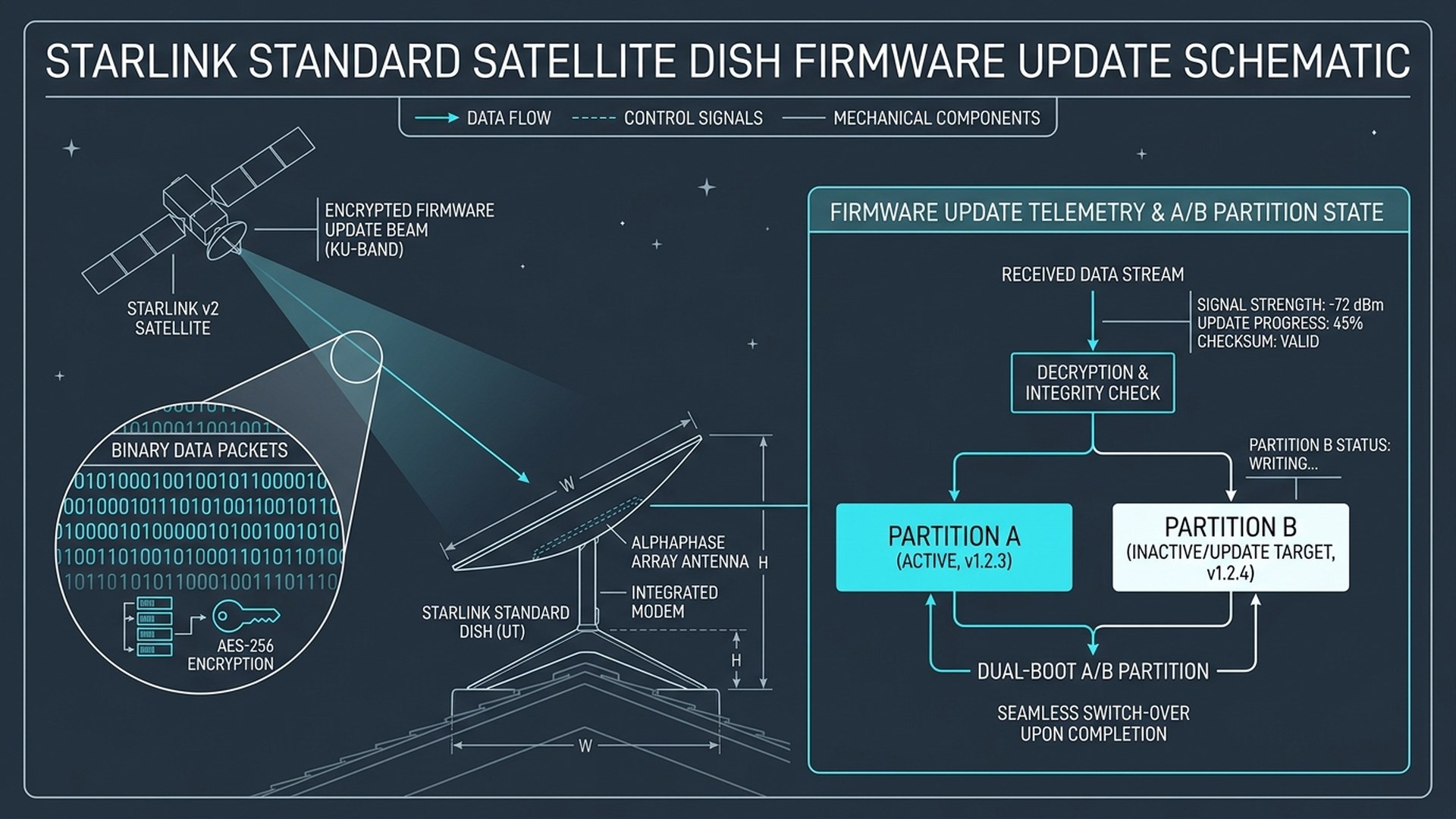
To understand how Starlink installs updates safely, think of your dish like a ship built with two independent engine rooms (Slot A and Slot B). While your dish is actively connected to the constellation using Slot A, the Starlink satellite beam downloads the encrypted software update directly into the dormant Slot B in the background.
This setup, known in computer engineering as an A/B partition update mechanism, completely eliminates the danger of permanent device failure. Once the download finishes, the bootloader performs cryptographic signature and checksum verifications. During the scheduled reboot, the dish restarts into Slot B. If the new software encounters a crash or power failure, the dish automatically reverts back to the known-good Slot A, keeping your connection safe.
Automated Update Schedule and 2026 App Maintenance Controls
By default, Starlink automatically applies pending firmware updates during an overnight maintenance window between 2:00 AM and 4:00 AM local time. This schedule is calculated using the physical GPS coordinates of your terminal rather than your billing address, ensuring it aligns with your real-world night hours even while traveling.
In the latest Starlink mobile app, you can customize your update window to avoid interrupting late-night work, gaming, or automated cloud backups. Navigate to Settings > Starlink > Software Updates to select your preferred reboot period (Overnight, Morning, Afternoon, or Evening). Business and Enterprise plan holders can also enable a 3-day update deferral.
Every successful firmware update triggers a fast reboot that takes approximately 1 to 3 minutes. You can verify that an update was recently installed by checking the Uptime counter in the app: if the uptime suddenly reset overnight while your house power remained uninterrupted, a fresh build was installed. For broader startup behavior details, see our guide on Starlink booting time and sequence.
Dish (User Terminal) vs. Wi-Fi Router Firmware
A common point of confusion is noticing two completely different version hashes in the app. This is because your satellite dish (User Terminal) and your Starlink Wi-Fi router run entirely separate operating systems:
- Dish Firmware (UT): Builds ending in
-uterm.releasemanage high-frequency RF beam steering, Doppler shift compensation with low-Earth orbit satellites, automated snowmelt heating, and Adaptive Coding Modulation (ACM). - Router Firmware: Builds ending in
-router.releasecontrol local Wi-Fi 6 broadcasting, mesh backhaul, captive portals, and bypass mode static routes. Learn how to configure these in our Starlink router settings walkthrough.
| Hardware Component | Build Hash Format | Core Operational Function | Update Frequency |
|---|---|---|---|
| Standard Gen 3 / Flat HP Dish | 2026.xx.x.mr...-uterm | Phased array RF tracking, satellite handoffs, rain fade compensation | Every 7 to 14 days |
| Starlink Mini (Integrated) | 2026.xx.x.mr...-mini | Combined beam tracking, 12V-48V DC power management, sleep scheduling | Every 10 to 14 days |
| Gen 3 Wi-Fi 6 Router (UTR-231) | 2026.xx.x.mr...-router | Local Wi-Fi mesh synchronization, Ethernet routing, bypass mode stability | Every 2 to 4 weeks |
2026 Starlink Firmware Version Log & Feature Tracker
SpaceX rolls out firmware in staged waves, known as canary deployments. A new build is tested first on internal employee dishes, then distributed to a small percentage of global users before broad release. The tracker below highlights recent verified 2026 releases and their primary performance enhancements:
| Build Version Hash | Hardware Target | Release Timing | Key Capabilities & Improvements |
|---|---|---|---|
| 2026.18.0.mr38192-uterm | Standard Gen 3 / Flat HP | August 2026 | Refined Adaptive Coding Modulation (ACM) to maintain throughput during heavy precipitation; faster satellite handoff tracking. |
| 2026.16.2.mr37841-mini | Starlink Mini | August 2026 | Auto-negotiation for fluctuating 12V-24V vehicle battery inputs and enhanced ultra-low power standby sleep modes (15W-20W). |
| 2026.14.0.mr36902-router | Gen 3 Router (UTR-231) | July 2026 | Improved third-party router bypass route stability (192.168.100.1/32) and optimized 5 GHz mesh backhaul channels. |
| 2026.10.1.mr35109-uterm | Standard Gen 2 (Actuated) | June 2026 | Motor current sensing updates to prevent gear wear during mechanical ice thawing and heavy wind stow routines. |
The "Force Update" Myth: Can You Manually Trigger a Download?
A frequent question among Starlink owners is whether they can click a button to force their dish to update immediately. In short: there is no manual 'Check for Updates' button for general residential users.
Because Starlink transmits updates via multicast satellite downlinks, pushing updates to millions of terminals on demand would congest critical satellite spectrum. Instead, SpaceX targets terminals dynamically based on cell capacity and regional deployment rings. If your dish is scheduled for an update, simply keeping it powered overnight is all that is required. If performance feels sluggish, consult our Starlink slow speed troubleshooting guide to isolate potential network congestion before assuming outdated software.
Troubleshooting: Fixing "The Starlink's Software Version is Unsupported"
If you power on a dish that has been stored in a box, cabin, or RV for 9 to 12 months or longer, you may see a red banner in the app stating: The Starlink's software version is unsupported.
This occurs because dormant dishes miss critical cryptographic security certificate renewals required to authenticate with modern Starlink satellites. Here is the verified step-by-step recovery procedure according to Official Starlink Support documentation:
- Remove Third-Party Networking: Disconnect any third-party routers, switches, or bypass configurations. Connect your dish cable directly into the official Starlink Wi-Fi router.
- Look for In-App Local Sideloading: Connect your smartphone directly to the Starlink router's Wi-Fi. Open the updated Starlink App; on supported builds, an emergency button labeled "Start Sideload" will appear to push base firmware from your phone's cached assets.
- Allow 24 to 72 Hours of Continuous Sky View: If sideloading is unavailable, set the dish outdoors with an entirely unobstructed view of the sky and leave it powered on continuously. The terminal will scan emergency broadcast beacons and download intermediate software bridges over several days.
- Contact Support for Provisioning: If the terminal remains stuck in a searching or offline loop after 72 hours, open a ticket via the Starlink app with your Starlink Terminal ID (`UTID`). Support can trigger a targeted satellite burst to bring your hardware back into compliance.